


How to Translate WP Residence with WPML
Learn how to translate WP Residence into more languages and create a multilingual website with WPML.


Translate all Elements
Translate all WP Residence elements, including pages, posts, custom posts, and more
Translate Theme Texts
Translate headers, footers, and any other texts in the theme
Localized Designs
Use the same design across languages, or create different designs in each language
Translate Any WP Residence Element
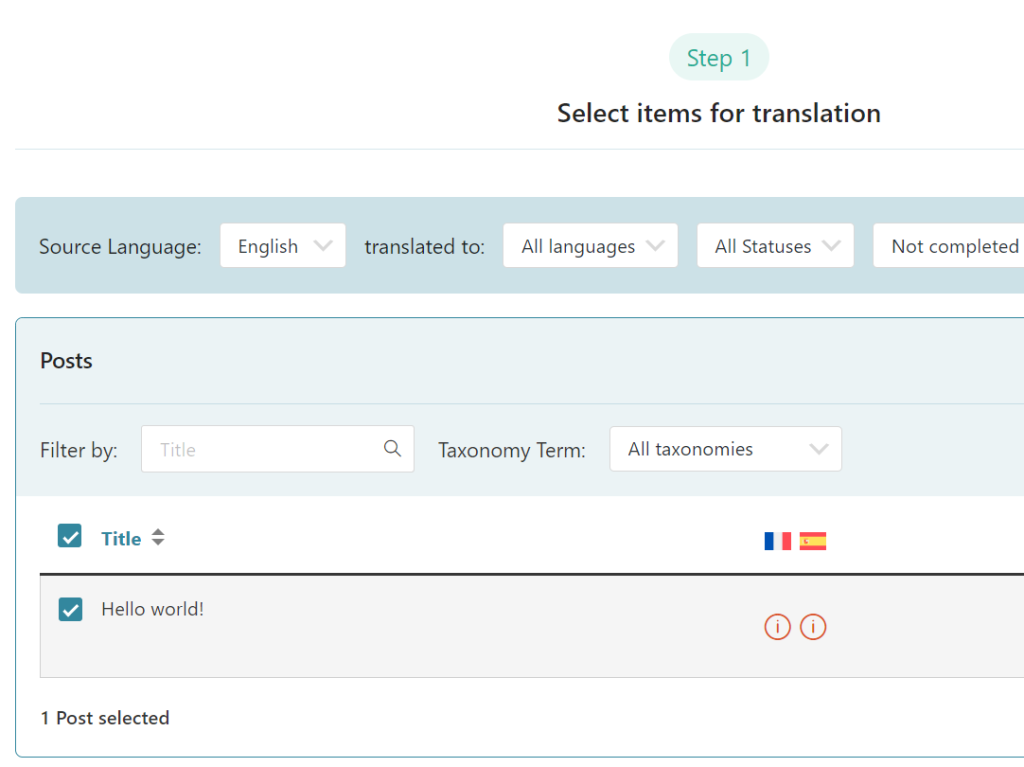
Translate any WP Residence element with WPML’s Translation Dashboard.
Simply go to WPML → Translation Dashboard and select content for translation. Then, choose to translate by yourself or using Private Translation Cloud (PTC), our most advanced automatic translation engine.
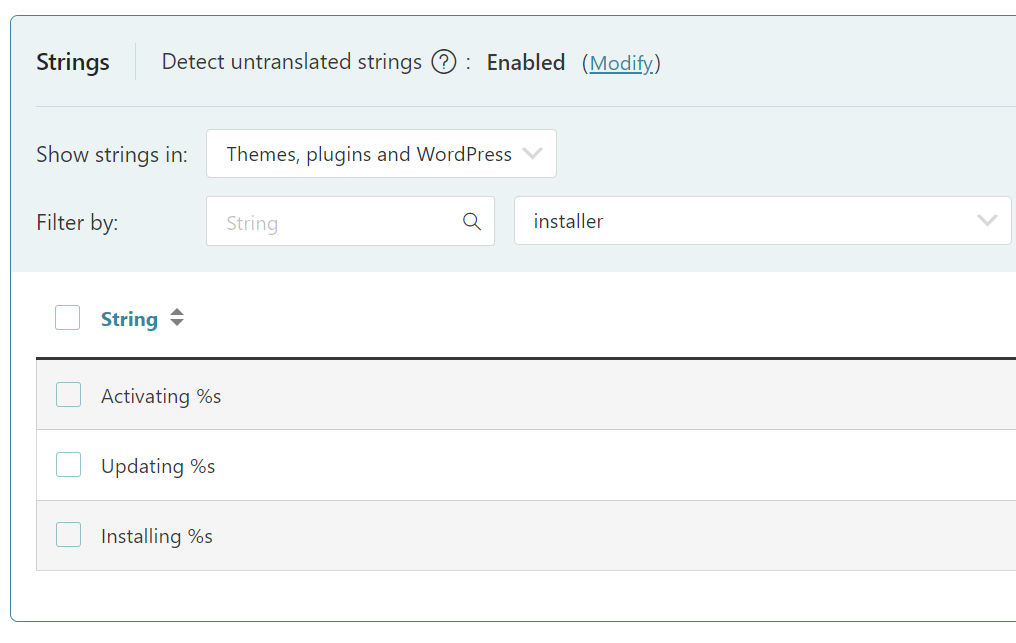
Translate Theme Texts
Translate your header, footer, and any other theme part via the Other texts (Strings) section in the Translation Dashboard, or with WPML’s String Translation.
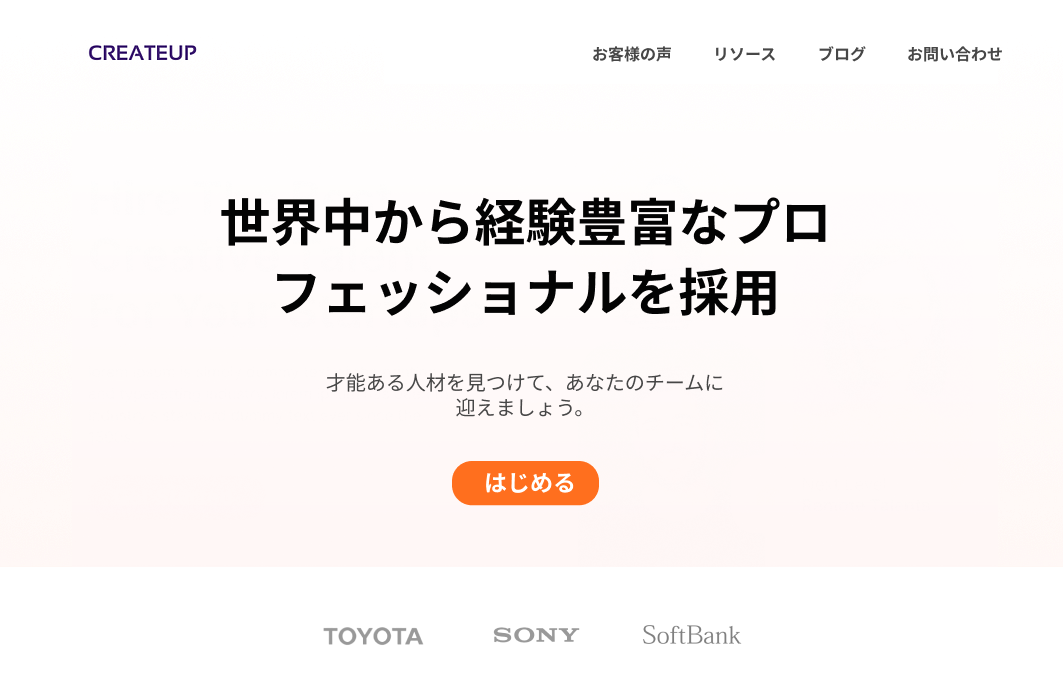
Create Different Designs in Each Language
Offer visitors a unique experience by creating culturally relevant designs in each language.

Frequently Asked Questions
My category appears multiple times on the front-end. How can I fix this?
To avoid displaying the same category several times on the front-end, go to WPML → Languages, and uncheck Adjust IDs for multilingual functionality.
Why aren’t my custom fields appearing in secondary languages?
If your custom fields don’t appear in secondary languages, their translation settings are likely set incorrectly. To update your custom fields translation settings:
1. Go to WPML → Settings.
2. Scroll down to Custom Fields Translation.
2. Locate the custom field that isn’t showing up and update its translation setting.
To learn more about translation settings, see our custom fields translation guide.
Written by Amir · Last updated November 27, 2024