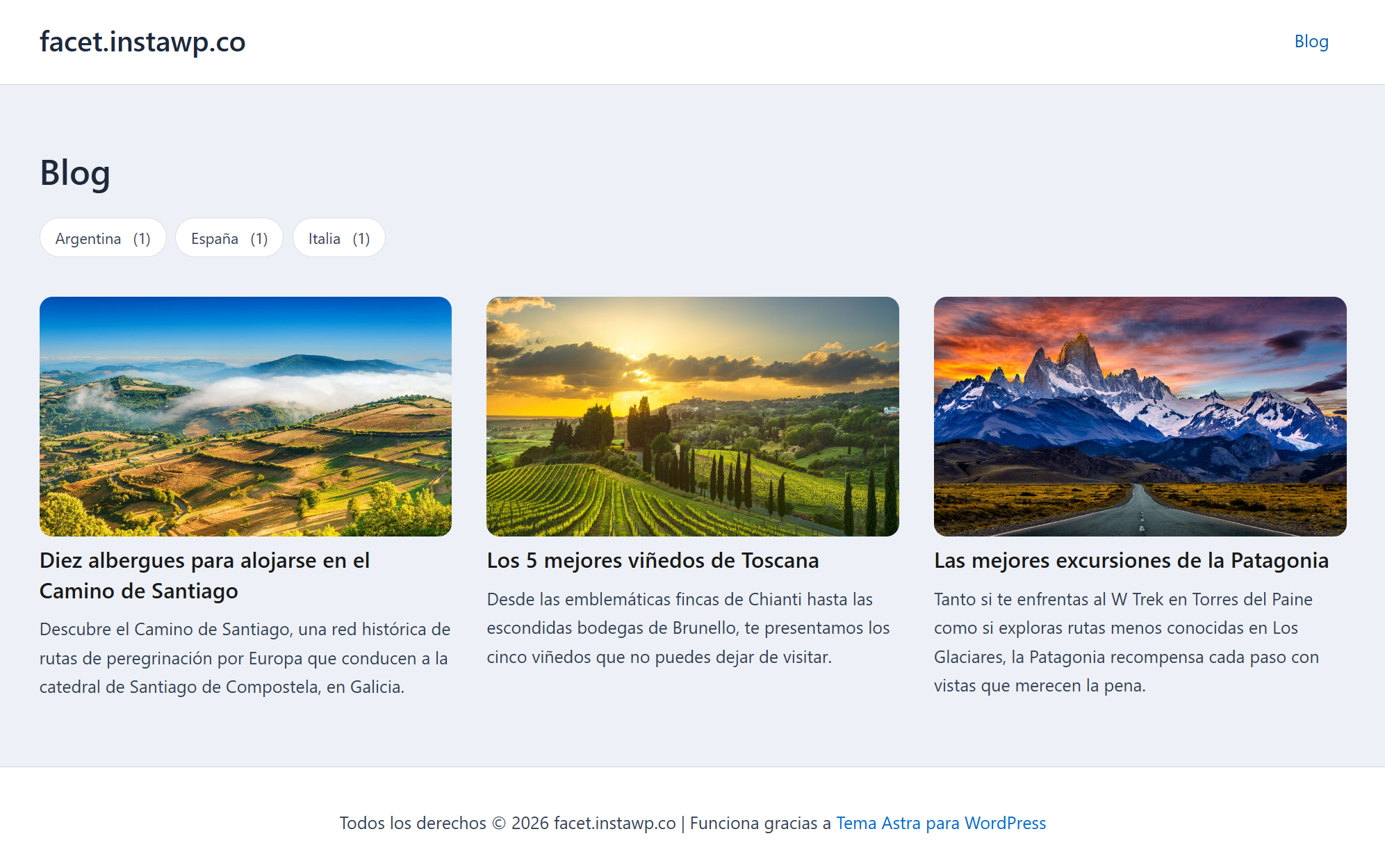
FacetWP allows you to add advanced filtering to the listings on your website. We’ll show you how to create multilingual filters using WPML.
Getting Started
Start by installing and activating the following plugins:
- WPML core plugin and WPML String Translation add-on
- FacetWP plugin and the Multilingual add-on.
Setting Up Your Facet Filters
FacetWP allows you to create custom listing templates via its in-built Listing Builder. You can then add the template shortcode to any page to display the custom listing.
In our example, we have a Blog page that lists travel destination posts. The page has a Facet listing and a Facet filter, both inserted using shortcodes.
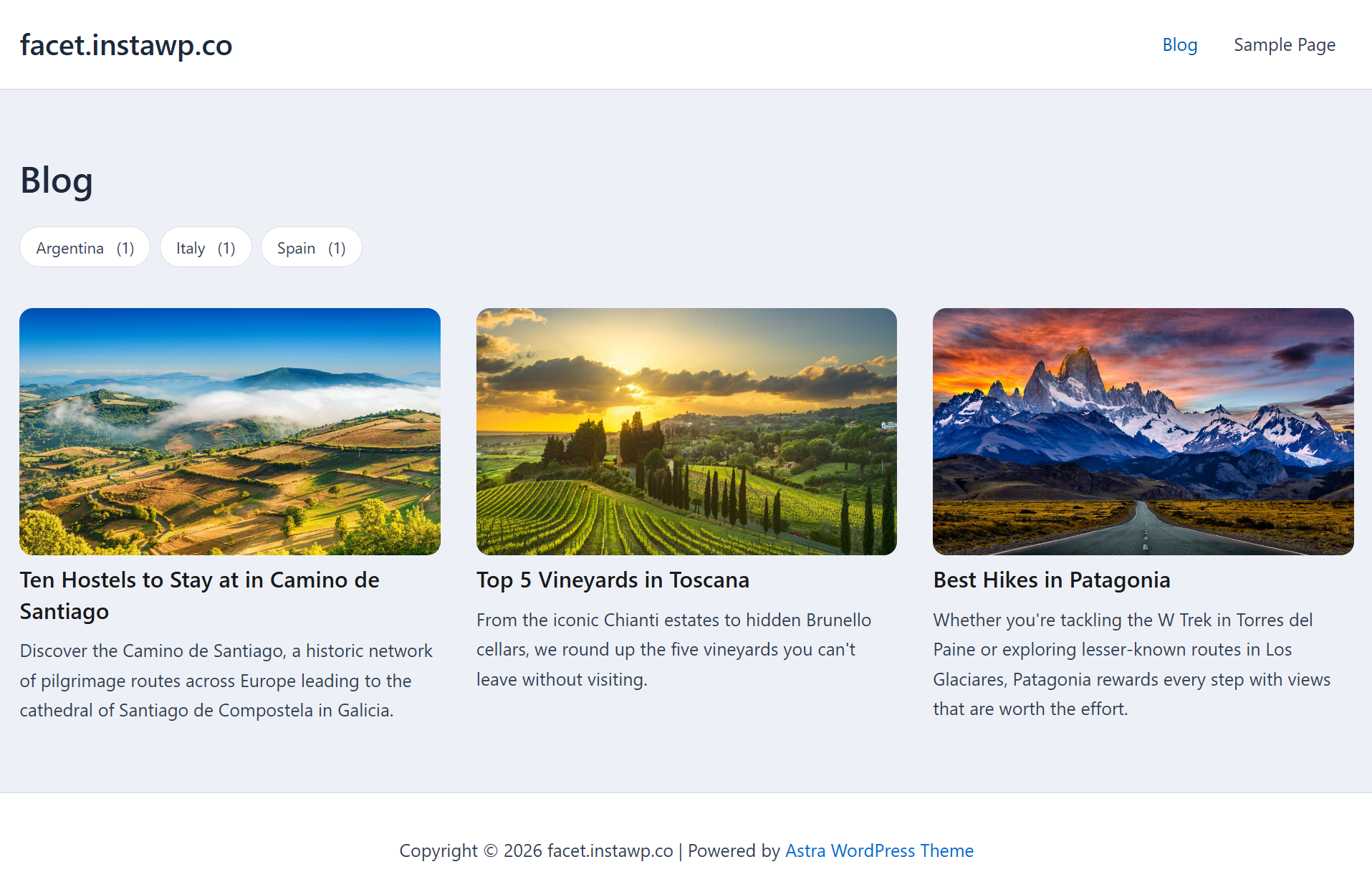
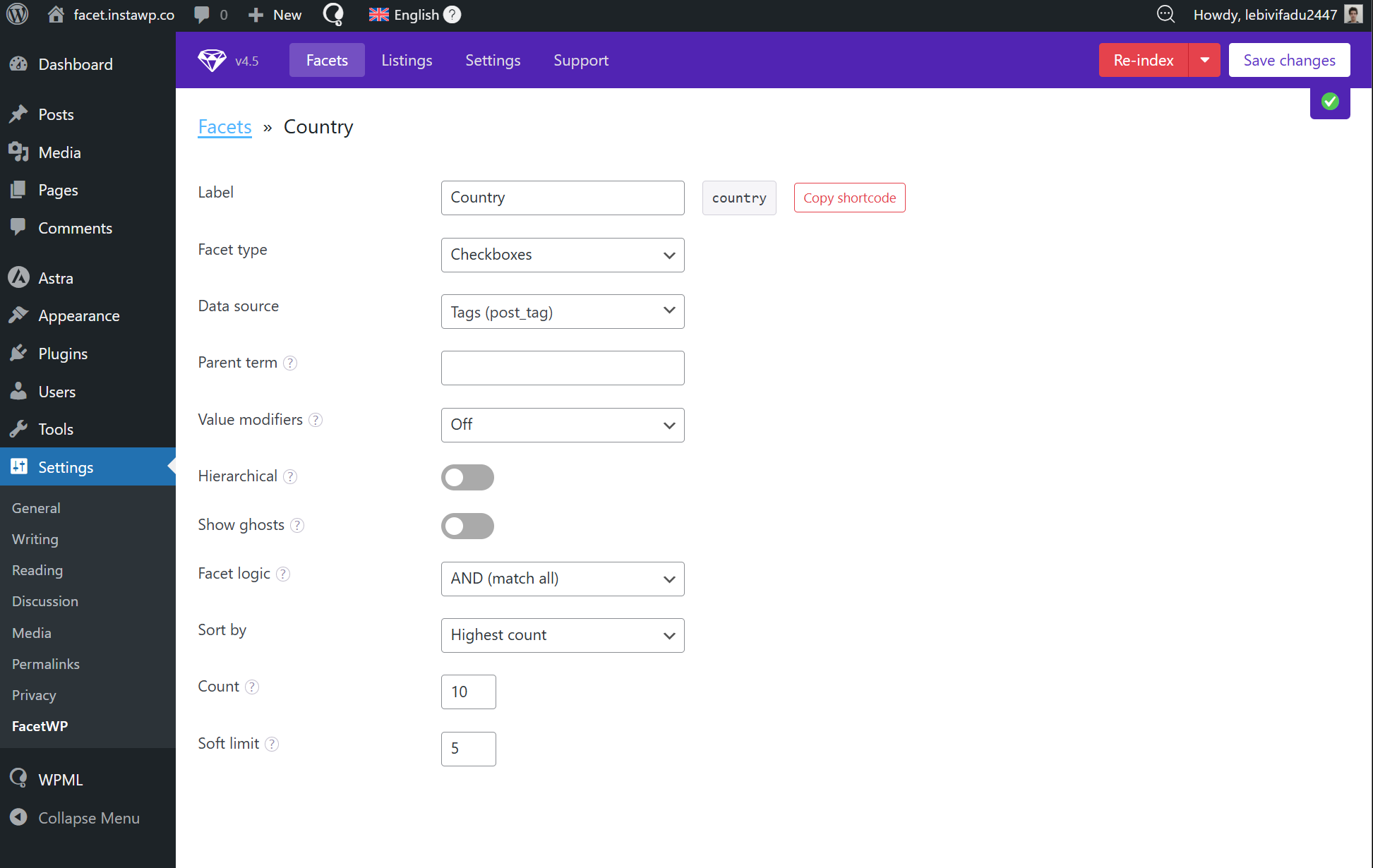
The facet filter uses post tags as its data source, letting visitors filter guides by destination country.
Translating Facet Filters
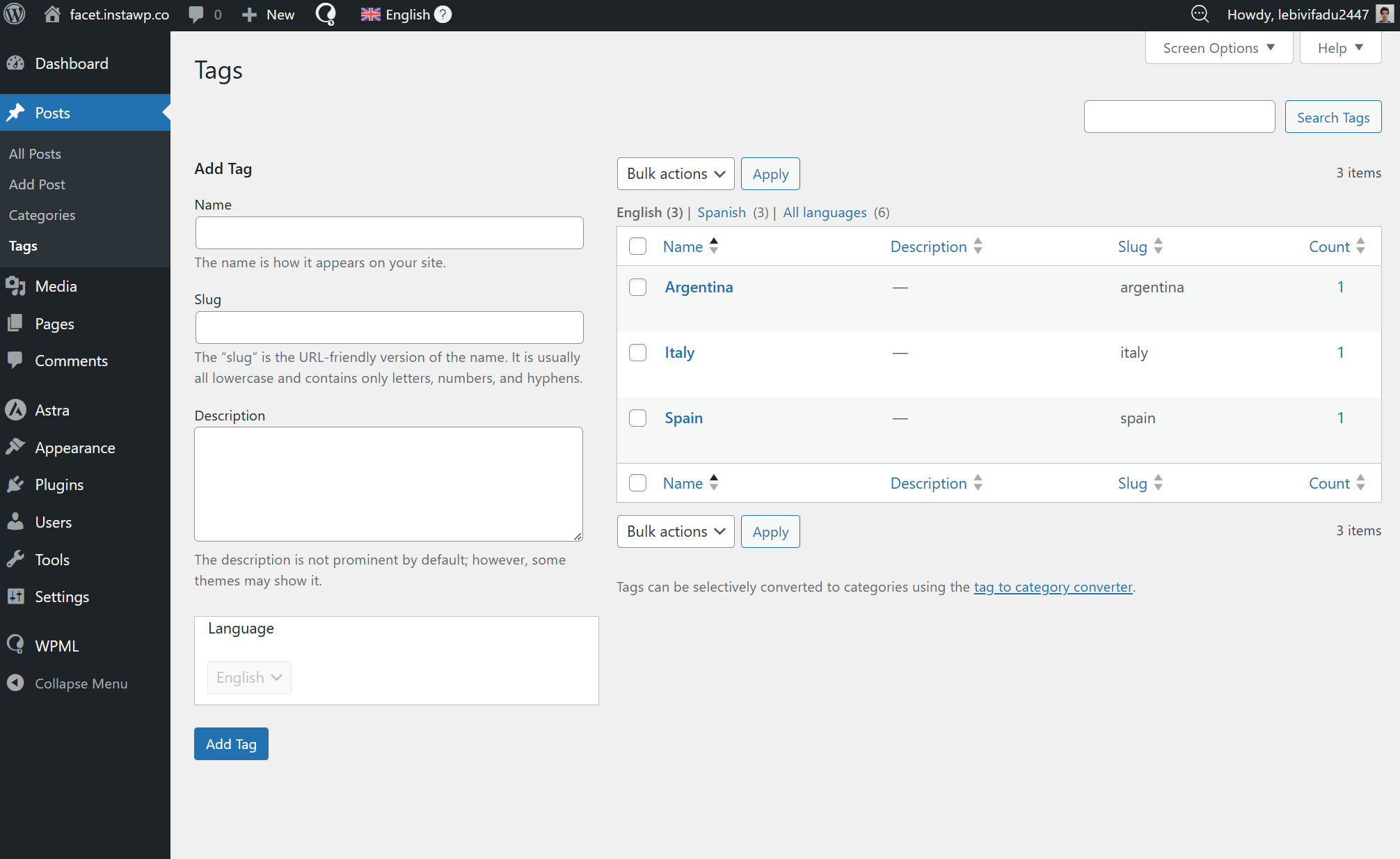
FacetWP builds its filters from your content data. This means, to translate your filters, you need to translate the content they’re connected to. In our example, the facet filter uses Post Tags as its data source, so we need to translate our posts:
- Go to WPML → Translation Dashboard.
- Select the posts that contain our Facet filter tags.
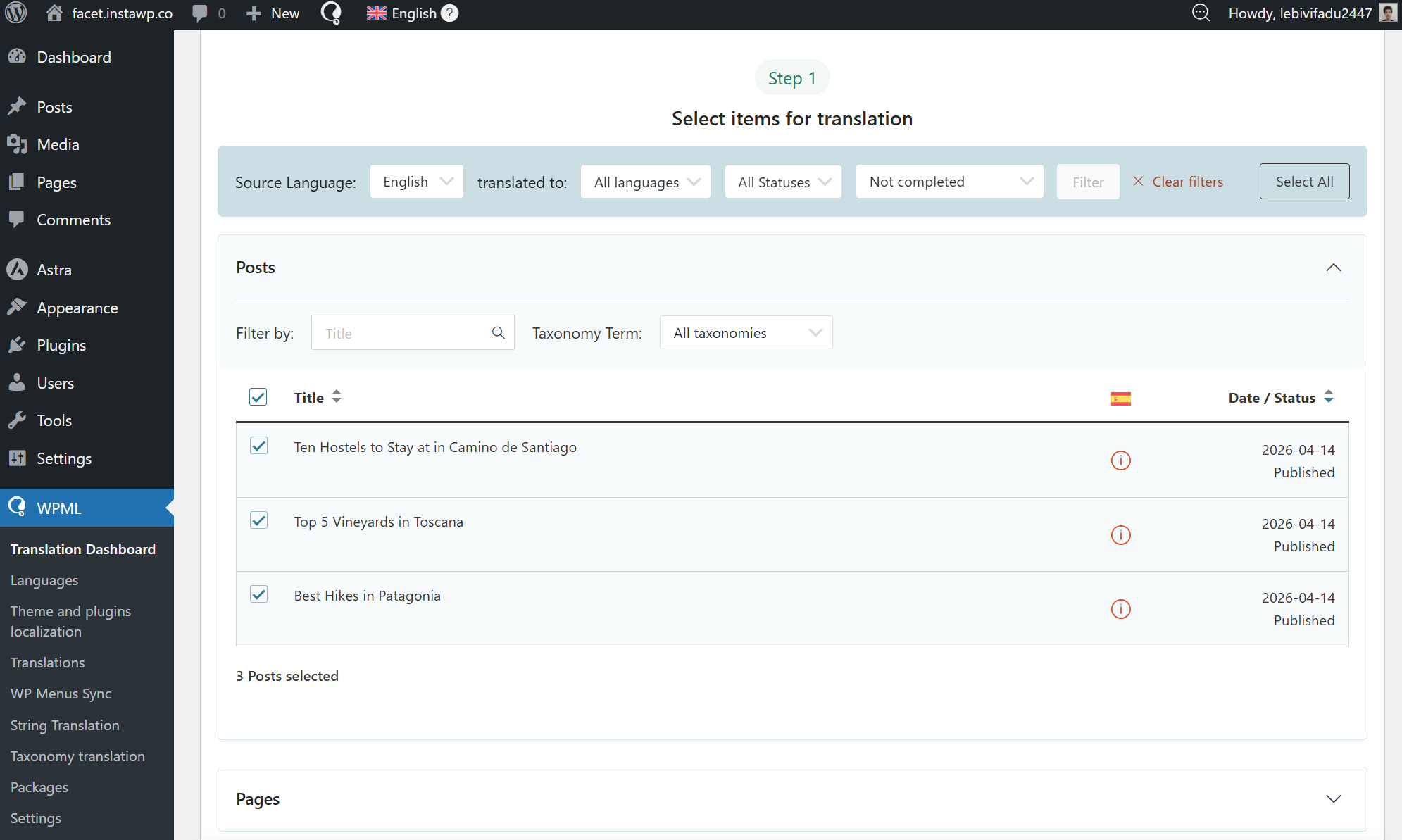
- Choose a translation method and click Translate.
Once translation is complete, our Facet filters will appear translated, matching the same translations of our post tags.