


Learn how to register strings WPML can’t automatically register, including theme or plugin settings, options, and user profiles.
The following table summarizes available solutions when you can’t find specific strings.
What Needs Translating?
What To Do
What Needs Translating?
Theme or plugin says it’s 100% translated but some or all translations are missing from the site’s front end
What To Do
Update theme or plugin translationsWhat Needs Translating?
Admin area strings, theme/plugin settings, widgets, and custom messages or emails
What To Do
Register admin and settings strings for translationWhat Needs Translating?
JavaScript strings coming from a theme or plugin don’t appear in String Translation
What To Do
Register strings from JavaScript files for translationWhat Needs Translating?
User profile information like names, bios, or custom fields
What To Do
Make user roles translatableWhat Needs Translating?
You want to override translations provided by the theme or plugin
What To Do
Scan the theme or plugin for stringsWhat Needs Translating?
Miscellaneous string translations aren’t synced on a site running on multiple servers
What To Do
Synchronize MO files across your serversUpdating Theme or Plugin Translations
To see if your theme or plugin includes translations for your languages, visit their respective pages in the WordPress theme or plugin repository. Look for this information in the Languages or Translations section.
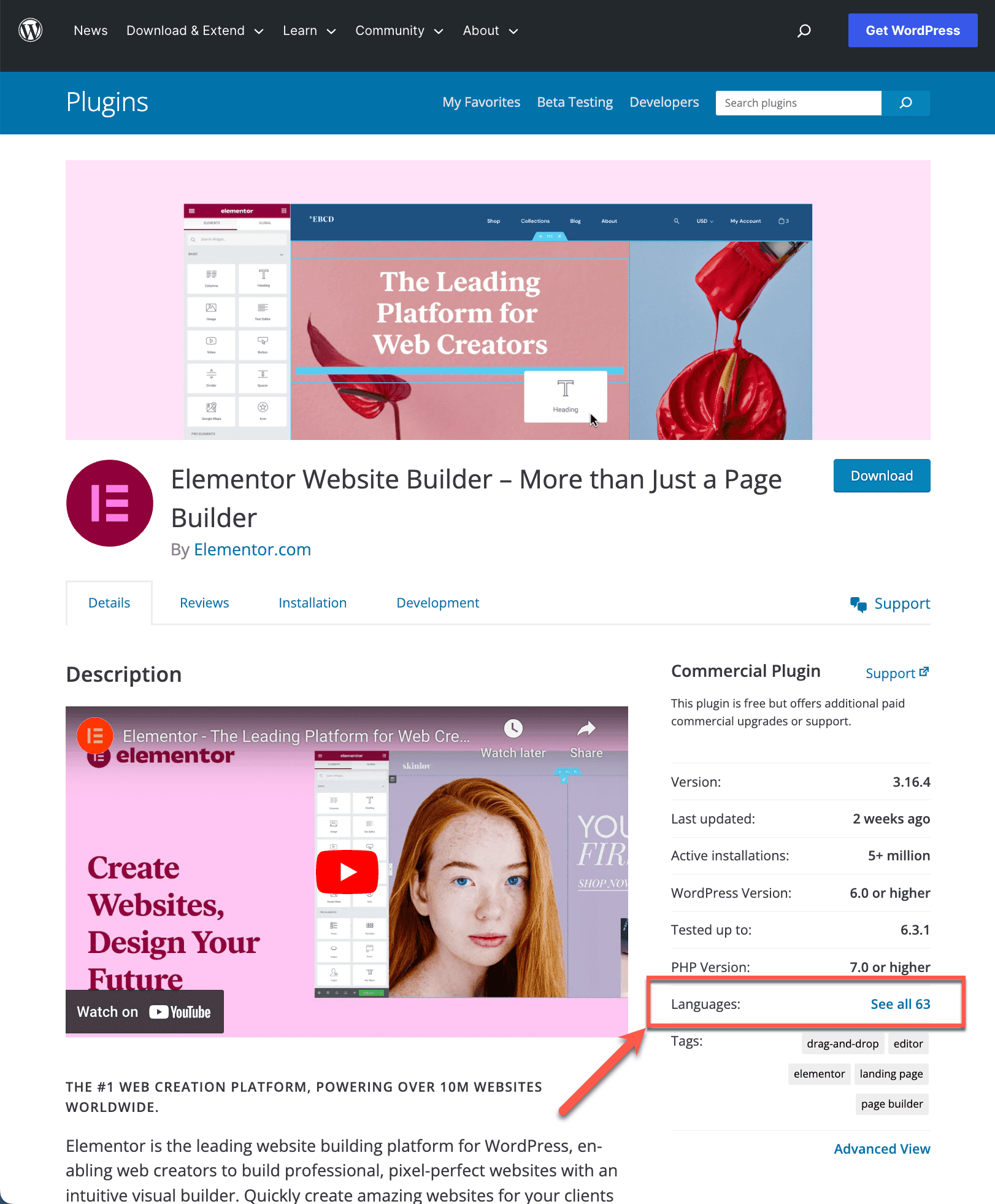
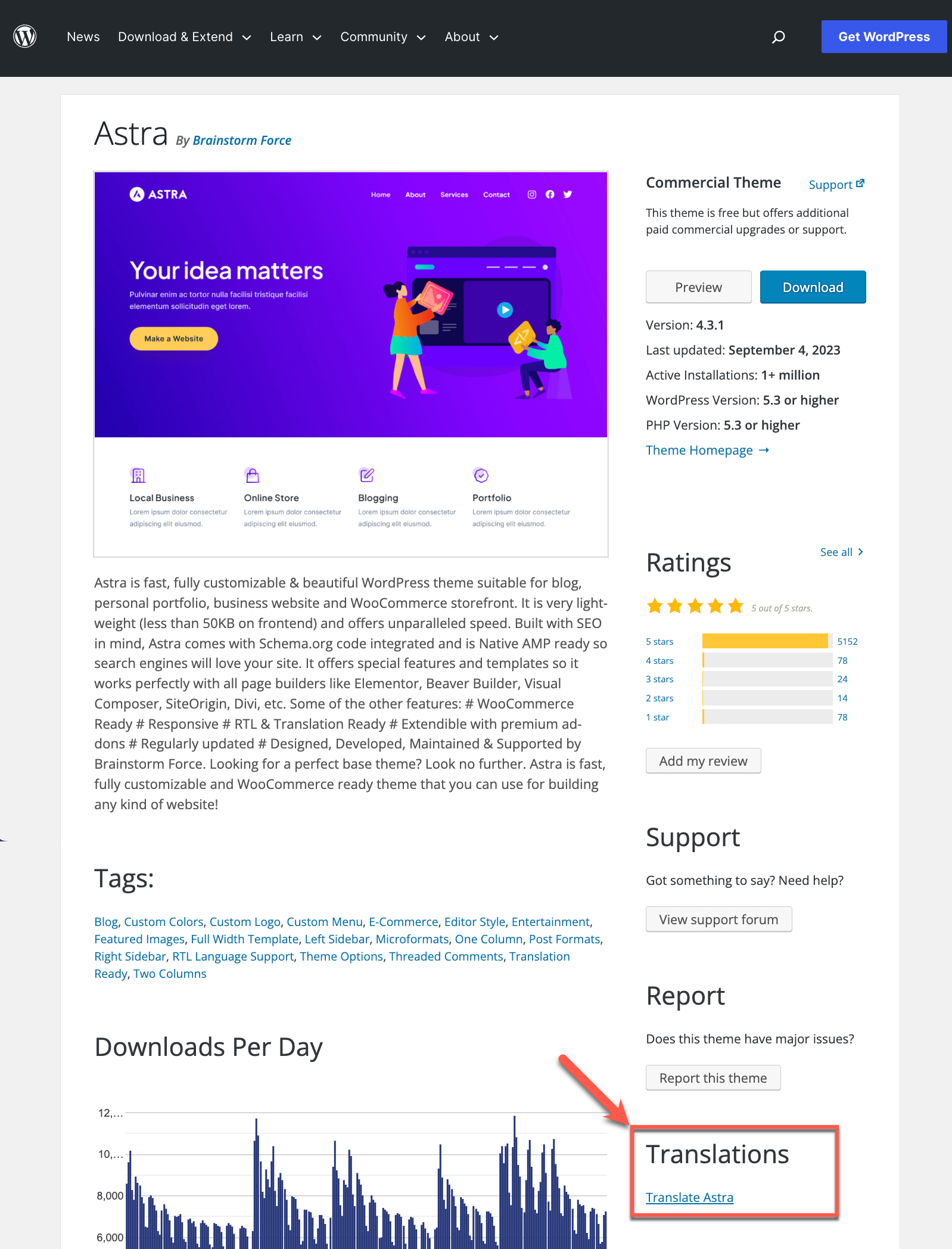
If you can’t see the translations on your site, it’s likely because you installed and activated the theme or plugin first and then set up WPML languages afterward. To display the translations:
- In your site’s admin, go to Dashboard → Updates.
- Scroll down to the Translations section and click Update translations.

You should now see the updated translations on the front-end.
Registering Strings From the WordPress Admin Area & Theme and Plugin Settings
When the theme or plugin you’re using isn’t fully compatible with WPML, you need to manually translate some of their texts. This includes:
- Texts from your theme options panel, like footer text, copyright notices, and custom messages
- Labels, messages, or other custom texts set in plugin options and settings
- Some WordPress core settings, like your time format
- Some widget titles and content
Before translating these texts yourself, we recommend contacting the authors and asking them to make their theme or plugin fully WPML‑compatible through our Go Global program.
To register these texts for translation yourself:
- Go to WPML → Translations → Strings.
- Scroll to Utilities, expand the Not seeing strings you are looking for? section, and click on the Admin Texts Translation link.

- On the Admin Texts page, select strings you want to translate and Add to String Translation.
These strings will now be available for translation in String Translation.
Registering Strings from JavaScript Files
Some themes and plugins keep certain frontend texts (strings) inside JavaScript files. Most often, this is the case with frontend features that refresh their content without needing to refresh the whole page.
For example, this is the case with the WooCommerce Cart and WooCommerce Checkout blocks. By default, WPML doesn’t see such strings. To translate them, you need to enable it in WPML’s settings:
- Go to WPML → Settings.
- Scroll to the String Translation section and enable the Detect strings in JavaScript files option.
- On your frontend, visit the page where your JavaScript string appears. This registers the script containing it.
- Next, go to WPML → Settings → Compatibility, select the plugin or theme that contains the untranslated strings, and click Scan.
- Finally, go to WPML → Translations → Strings to translate your JavaScript strings.
As this feature may impact site performance, after translating your strings, go back to WPML → Settings and disable it.
Scanning a Theme or Plugin to Update Existing Translations
WPML’s auto-registration optimizes site performance by only making untranslated texts from themes and plugins available for translation. Scanning a theme or plugin loads all strings, even those with existing translations.
To scan a theme or plugin:
- Go to WPML → Admin Texts Translation and open Not seeing an admin text you need? at the bottom of the page.
- Select your theme or plugin and scan it.

Strings in these components will now be available for translation in String Translation.
Keep in mind that WPML can only find existing translations that were loaded at least once. While this usually happens automatically, sometimes you need to trigger this action yourself.
To do this, simply visit the page containing your missing translations on the front-end. As you view the page, WPML will automatically register the missing translations.