


WPML allows you to create a specific root page for your site. This means that regardless of the languages available on your site, all your visitors will see the same starting page.
WPML lets you create virtual directories for all languages, including the default language. These are not real physical directories on the server’s drive, but virtual directories that only appear in URLs.
Please note that when the Use directory for default language option is set on the WPML → Settings → URLs and SEO → Use directory for default language page, a root page must be used.
With language folders for all languages, your site’s structure can look like:
mysite.com/en/
mysite.com/es/
mysite.com/fr/
To enable this format, go to WPML → Settings → URLs and SEO → Use directory for default language and scroll down to the Language URL format section.

What is a Root Page and Do I Need One?
The root page of your website is the content that loads when visitors access your domain name, i.e. mysite.com, in a web browser. If you are using the Use directory for default language option, the starting page will be the same for all your visitors, regardless of the available languages on your site.
Below you can see a simple example of a root page, which features a welcome message and links to the site’s language versions.

Setting Up the Root Page
In order to use a root page, you must first select the Different languages in directories option.
Then, enable the Use directory for default language option.
Now, you must choose what goes into your site’s root URL. For the root URL, you can choose between an HTML file or a WordPress page.
Selecting an HTML File
When you choose an HTML file, you need to provide its path. If the path starts with a slash “/”, it is an absolute path on the server. Otherwise, it is relative to the WordPress directory.
Using a Relative Path
You can upload the HTML file you want to use for your root page using a FTP program and place it under your site’s WordPress directory as shown in the image below.
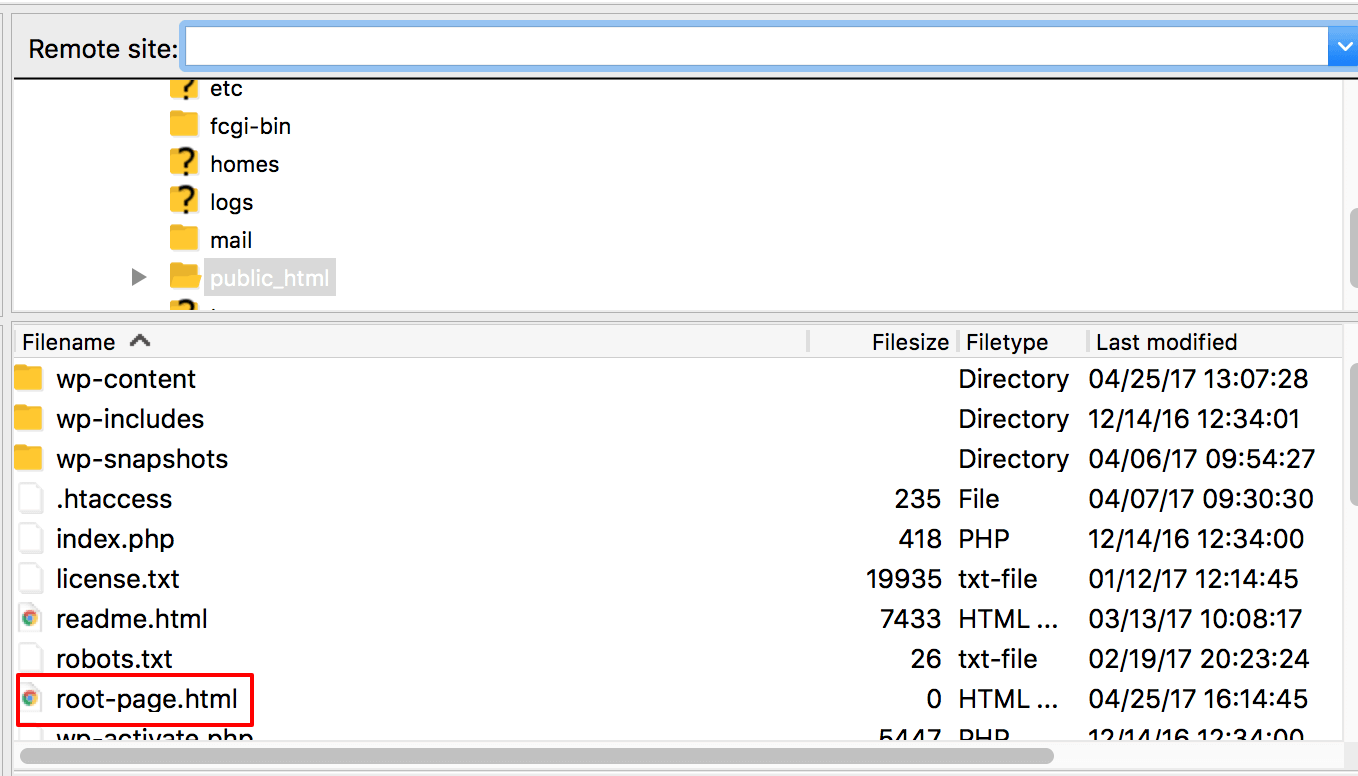
Once the file is uploaded, you can set its relative path, by simply specifying the file’s name. As an example, we set the file name to root-page.html.

Using an Absolute Path
If you want to use an absolute path on your server you can upload your HTML file in any of the site’s folders.
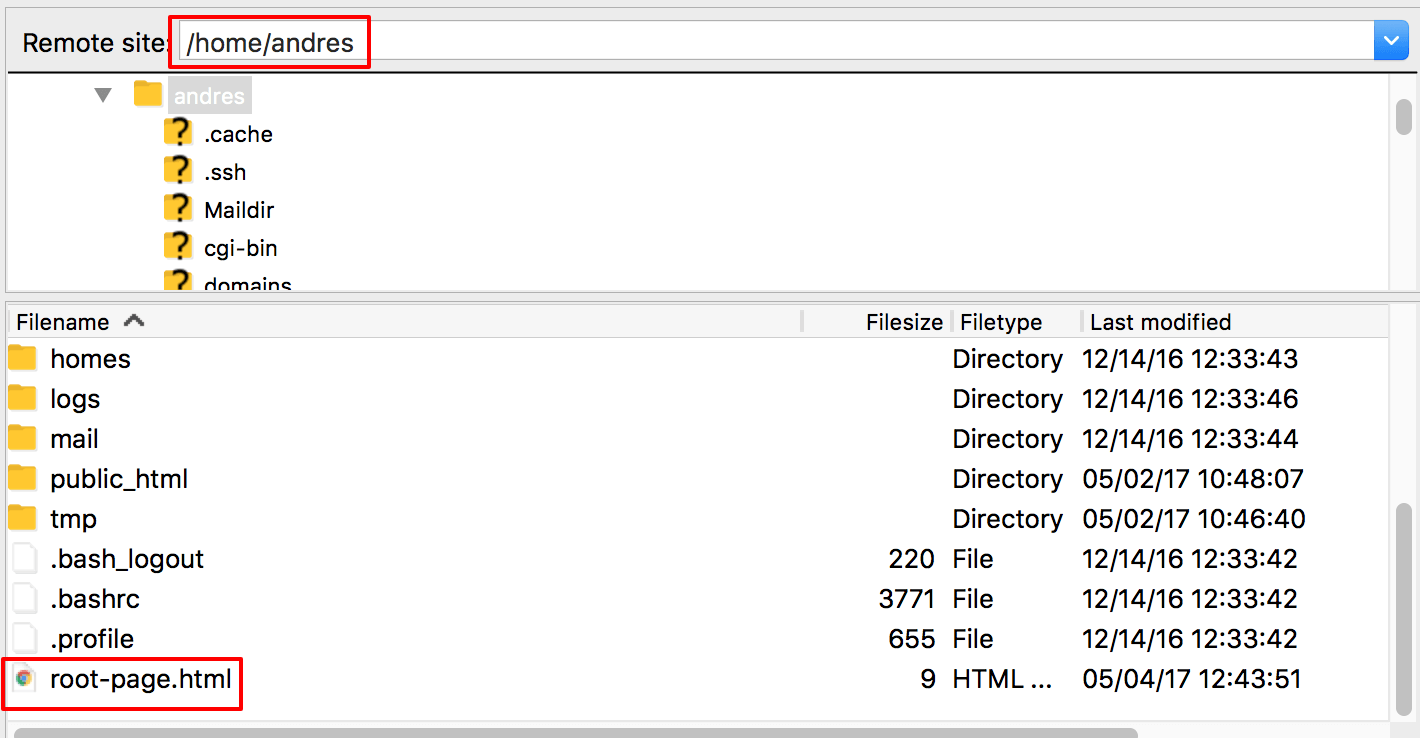
Once you upload the file, you can set its absolute path, for example /home/andres/root-page.html.
Selecting a WordPress Page
If in the Language URL format card of WPML → Settings → URLs and SEO you choose A page for What to show for the root url, save your settings first and then click the Create root page link.

This redirects you to the WordPress page editor interface.
Here, you can design how you want your site’s root, main landing page to look like. For example, you can choose to display a welcome message and provide a language selection interface.

Once you finish adding your content, save the page.
That’s it! When visitors come to your site, this page will be used as the root landing page, regardless of the available language preferences.
Editing an Existing Root Page
When you select to use a standard WordPress page as your root page, you will not find it listed in Pages.
To edit your root page, go to WPML → Settings → URLs and SEO and, in the Language URL format card, click the Edit root page link next to A page.

Redirecting the Root Domain to the Default Language Directory
Sometimes, you might want to redirect your root domain to the directory of the default language. In other words, if English is the default language and someone visits www.yoursite.com, they are redirected to www.yoursite.com/en/.
Start by creating a PHP template for your site’s theme. In most cases, you should add such PHP files to a child theme.
Add the following content to your new PHP page template file:
Root Redirect
<?php
/*
Template Name: Root redirect
*/
wp_redirect( home_url() );
exit;
?>
Now, go back and edit your root page.
In the right sidebar, expand the Summary section and select the template you just created.

When you’re done, make sure to update the page.
Now, your root page will redirect to the default language directory.