


This guide covers translating content created with Product Add-Ons for WooCommerce, a third-party extension that lets you add extra options to your products.
WooCommerce product with add-ons in English
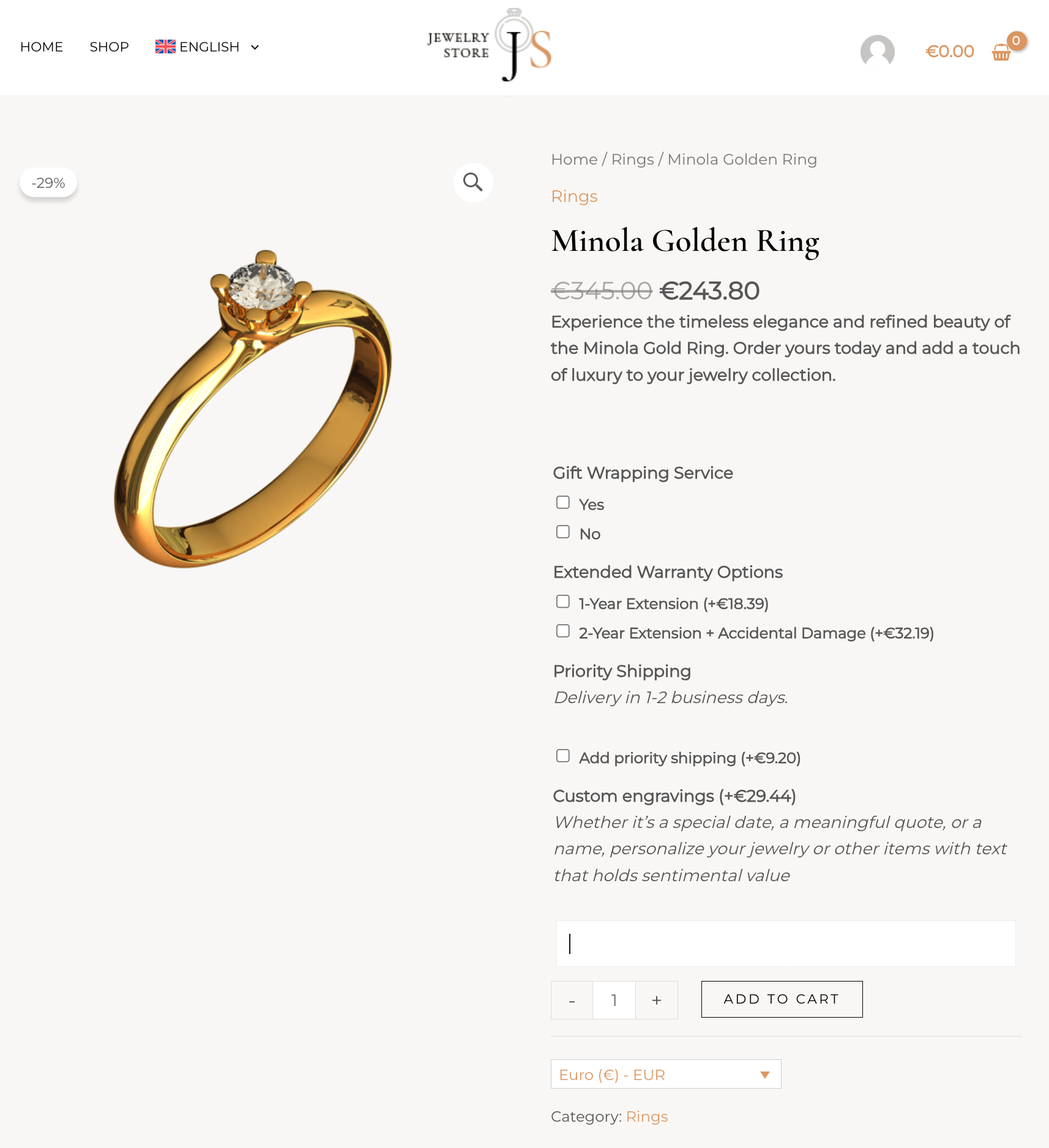
WooCommerce product with add-ons translated into Polish
If you are looking to translate your core WooCommerce products, see our WooCommerce translation guide instead.
Required Plugins
Start by installing and activating the following plugins:
- WooCommerce
- Product Add-Ons
- WPML
- WPML String Translation
- WPML Multilingual & Multicurrency for WooCommerce (WCML)
You can install all WPML components using the OTGS Installer plugin.
How to Translate Per-Product Add-Ons
To translate per-product add-ons, just send the product for translation:
- Go to WPML → Translations and scroll to the Products section.
- Select the product with the assigned per-product options.
- Choose a translation method and then click to Translate your content.

WPML will automatically translate your per-product add-ons along with your product.
How to Translate Global Add-Ons
To translate global add-ons:
- Go to WPML → Translations and scroll to the Other texts (Strings) section.
- Set the Domain filter to the extension’s own text domain, for example wc_product_addons_strings.
- Select the strings you want to translate and send them for translation.

If you don’t see the fields from a global add-on group on the Dashboard tab, go to Products → Add-ons, edit the add-on group, and resave it. When you return to the Other texts (Strings) section, you should see the global add-on fields there for you to translate.
How to Set Custom Prices for Product Add-ons in Multiple Currencies
In a multi-currency store, WCML automatically calculates prices for product add-ons in other currencies. If you prefer, you can manually set custom prices for both per-product and global add-ons in each currency.
Setting Custom Prices for Per-Product Add-ons
To change the currency settings for per-product add-ons:
- Edit the product and, on the General tab of the Product data box, choose Set prices in other currencies manually.
- Switch over to the Add-ons section and click the pencil icon next to each option to add your custom prices in other currencies.

Setting Custom Prices for Global Add-ons
To change the currency settings for global add-ons:
- Go to Products → Add-ons and edit the add-on group.
- In the Multi-currency settings section, enable the option to Set prices in other currencies manually.
- Click the Pencil icon next to your options to manually set the prices in each currency.