


Best WooCommerce Checkout Plugins (6 Tested)
We tested six WooCommerce checkout plugins on field customization, editor usability, and Classic and Block checkout compatibility to help you find the right fit.

Learn how to customize your WooCommerce checkout page to improve the user experience for international customers, and sell more.
Ever tried buying something online and the checkout form made you feel like, “wait, this isn’t built for me…”
Maybe the phone field only accepted a specific country code, or the address format didn’t match yours. For international customers, little details like these can break the shopping experience.
Fortunately, with plugins like Checkout Field Editor for WooCommerce by Themehigh, you can easily customize your checkout page for users in different countries.
When customers come from different parts of the world, your checkout needs to speak their language—literally and figuratively. Using Themehigh’s Checkout Field Editor, you can tweak, add, or remove fields to match local formats, legal requirements, or just make the form simpler.
Here’s why you should customize your checkout:
Customers feel more confident when forms look familiar. Adjusting fields to reflect local standards—like changing “State” to “Province” or adding a VAT number field—helps reduce cart abandonment.
International buyers are more likely to complete a purchase when they see fields that apply directly to them. Remember – the fewer the distractions, the faster a user completes their purchase.
Some countries have specific invoicing or tax rules. For example, the EU often requires VAT ID fields, while others need local ID numbers. Customizing your checkout ensures you’re collecting the right data.
To customize your checkout experience, install and activate the following plugins:
Due to a request from WooCommerce, we’ve renamed WooCommerce Multilingual & Multicurrency to WPML Multilingual & Multicurrency for WooCommerce.
Once you complete setting up the necessary plugins, go to WooCommerce → Checkout Form to customize your checkout fields.
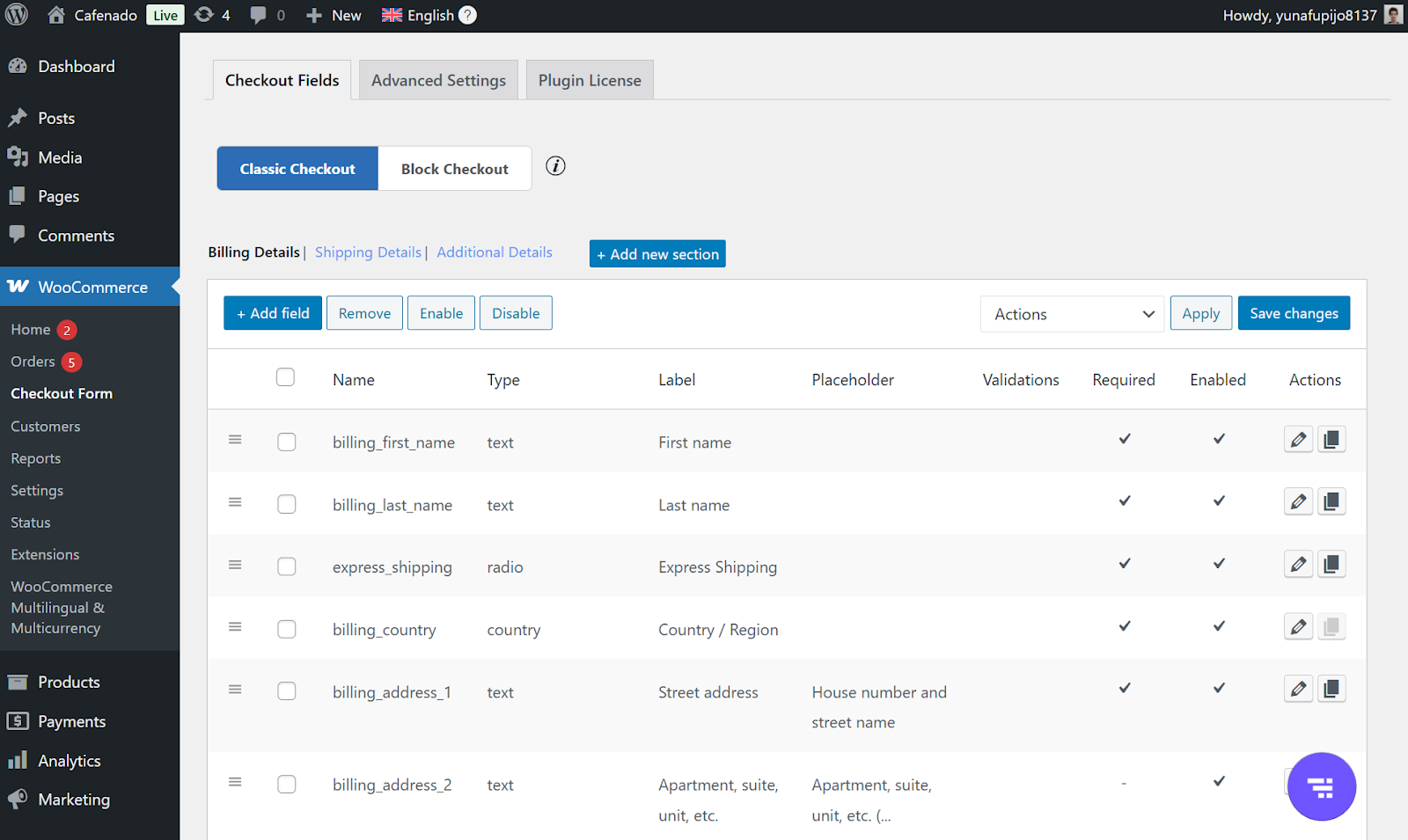
Here, you can add, remove, or edit fields as needed. For instance, you can:
Remember to clearly label your fields and use placeholders to help the user understand what’s expected.
To translate your new checkout fields with WPML:
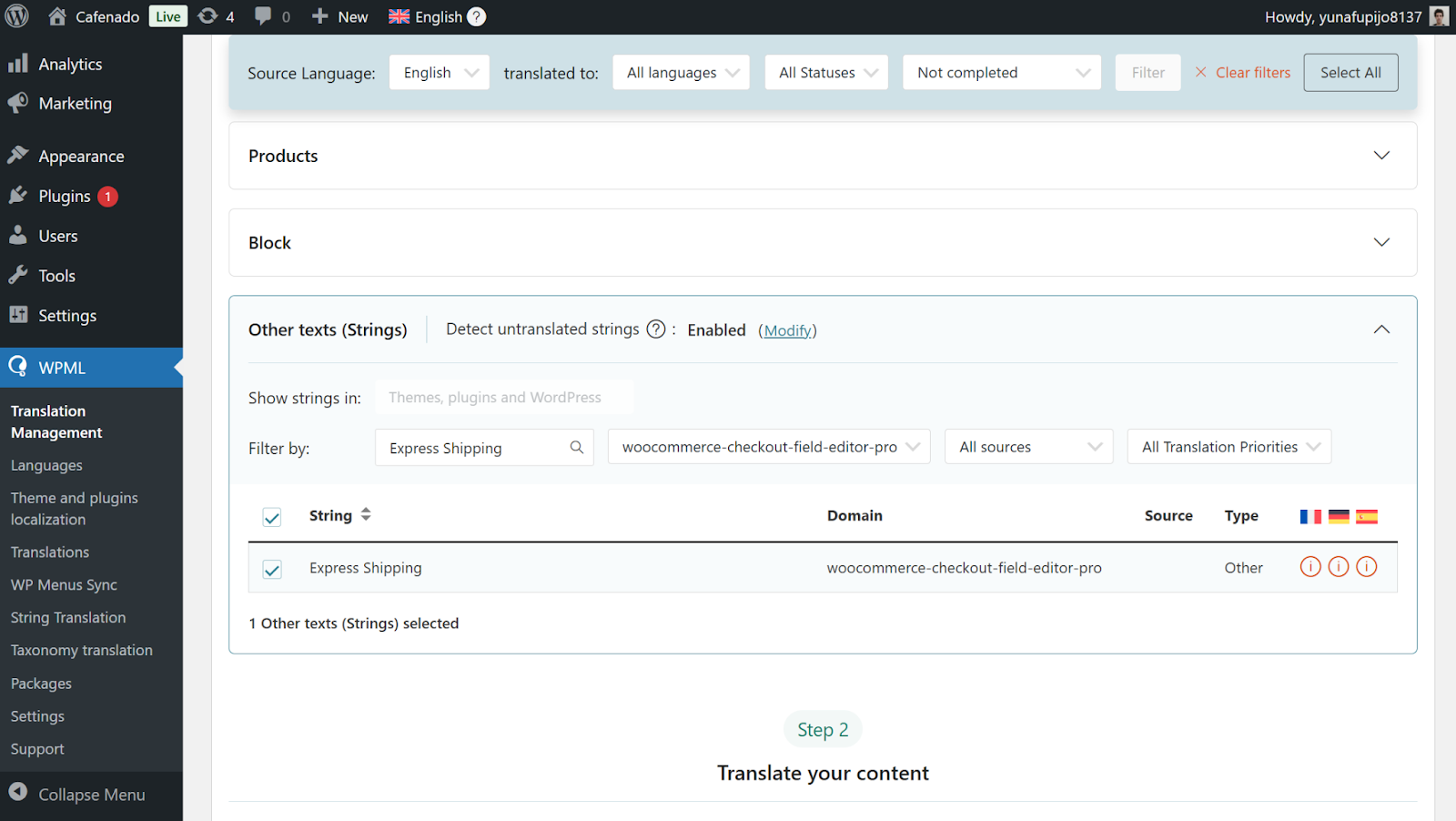
Your translations will now automatically appear on the checkout page.
Conditional Logic and Field Visibility Control
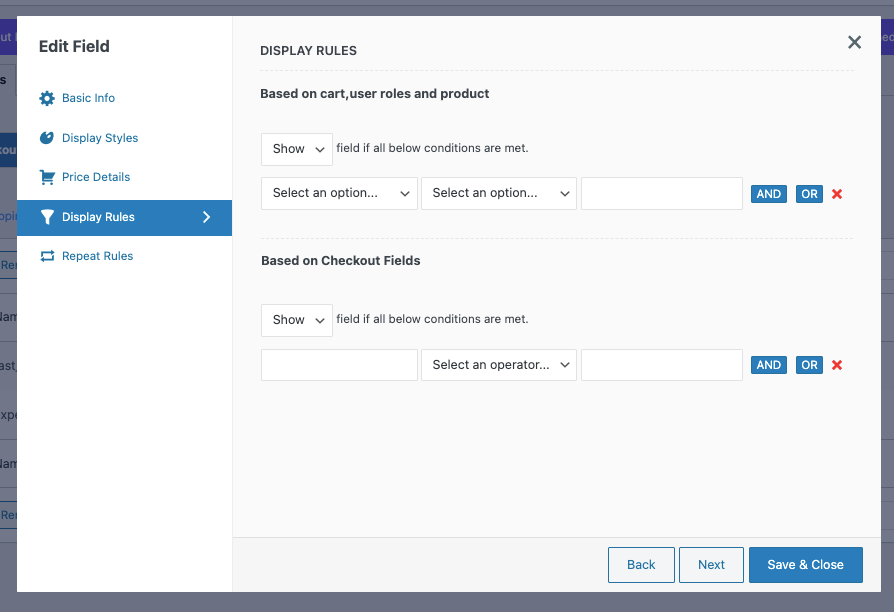
Themehigh allows you to show or hide fields dynamically based on user input, user roles, or even specific products.
For example, you can reveal a VAT Number field only if the customer selects “Business” or displays different fields for wholesale vs retail customers—no coding needed.
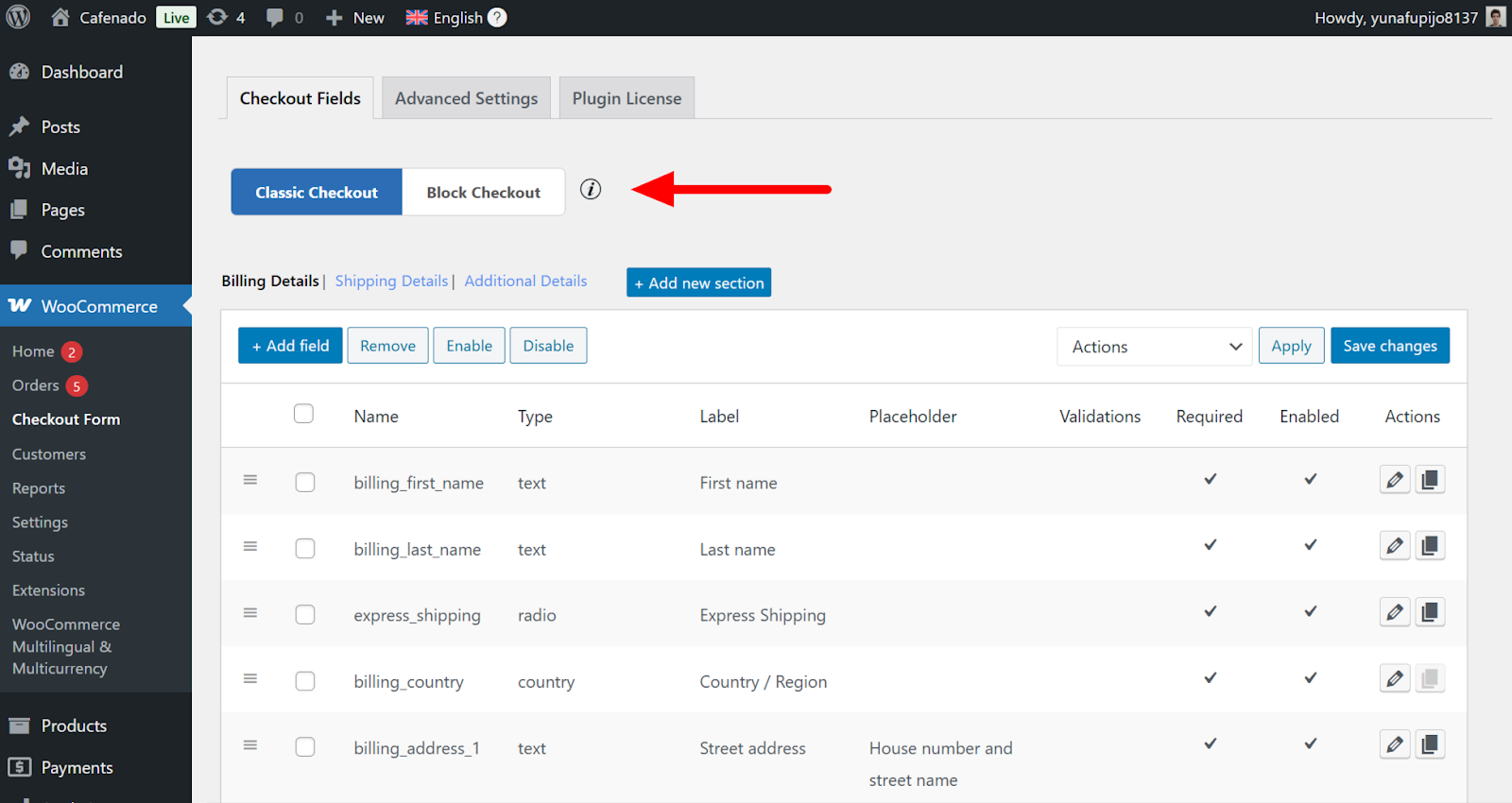
WooCommerce Block Checkout Compatibility
Whether you’re using the Classic or Block Checkout, you can customize both types of forms using the Checkout Field Editor. Simply go to WooCommerce → Checkout Form, select your active checkout type above the table, and edit your fields.
Field Pricing
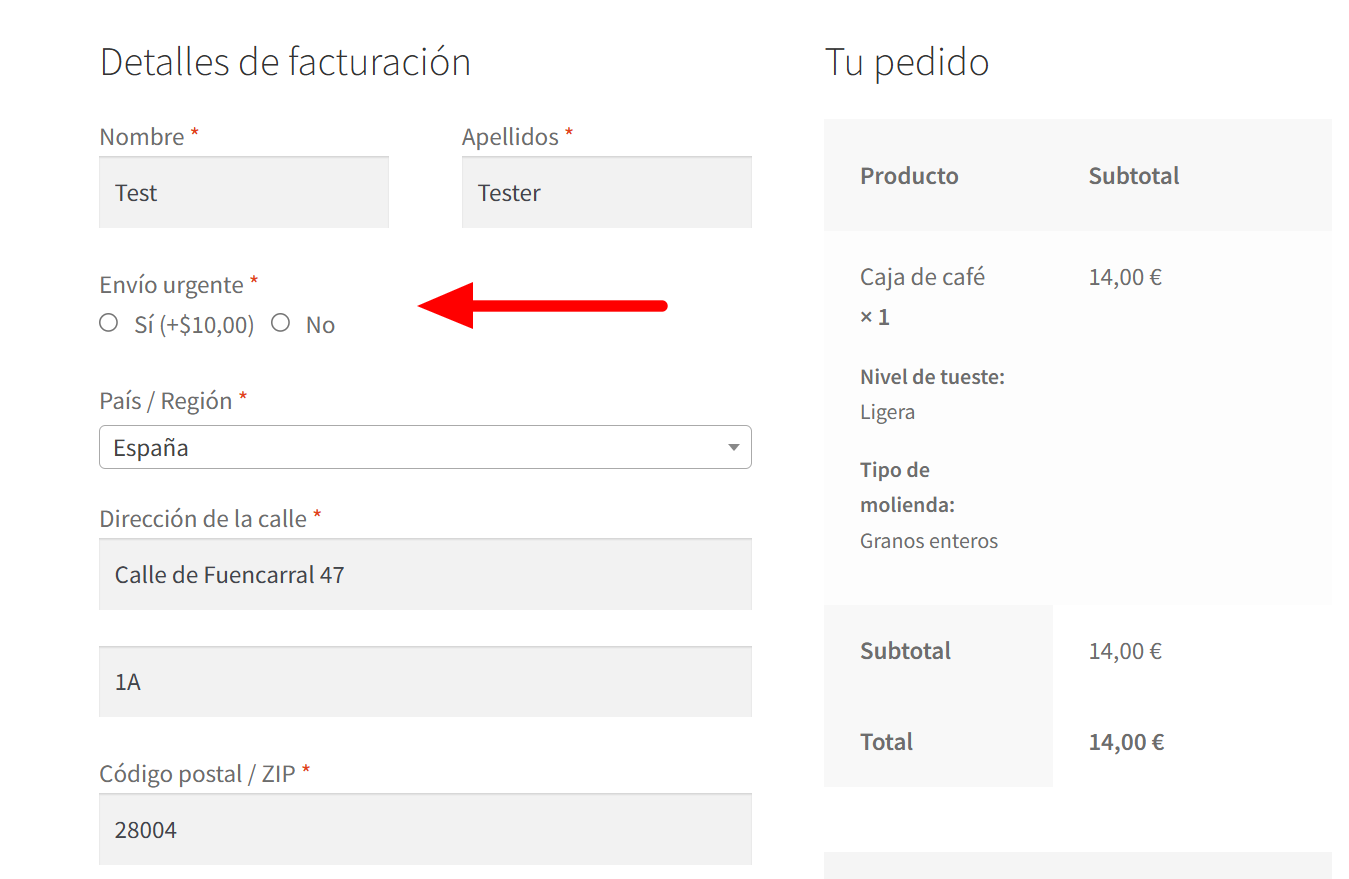
Themehigh lets you assign additional costs to custom fields. Whether it’s a gift-wrapping option, priority handling fee, or an add-on service, you can easily add extra charges based on user selections—enhancing upsell opportunities directly at checkout.
Using plugins like Checkout Field Editor for WooCommerce and WPML, you can easily localize your checkout experience for international customers. From adding relevant fields to translating your form, customers can confidently complete a purchase, wherever they are in the world.
Checkout Field Editor for WooCommerce is one of several plugins that work with WPML. If you’d like to compare your options, we’ve tested and reviewed 6 WooCommerce checkout plugins to help you find the best fit for your store.
We tested six WooCommerce checkout plugins on field customization, editor usability, and Classic and Block checkout compatibility to help you find the right fit.
Translate Options Pages directly in Translation Dashboard, manage local fields more easily, and enjoy faster performance with ACFML 2.2.0.
Today, we released Contact Form 7 Multilingual 1.3.2, resolving a breaking compatibility issue between Contact Form 7 version 6.0 and WPML.