


Learn how to translate your website in the WordPress Editor using the Multilingual Blog version of WPML.

Getting Started
To follow this tutorial, make sure to first install and set up WPML on your WordPress website.
Translating Native WordPress Content
WPML lets you manually translate any type of native WordPress content, like pages, posts, and custom posts.
To translate any of this content:
- Go to the WordPress screen with the content you want to translate (e.g., Pages).
- Click the Plus icon under the language flag.

- In the blank editor that appears, manually create your translated page from scratch. Or, click the Copy content from English button if you want to start with the same design as your default language.

- If you decide to copy content from your original language, you can then replace your texts with translations.

Once published, your content will appear translated on your website when switching languages.


Translating Content Coming from WordPress Plugins
Besides native WordPress content, you can also translate content created with plugins.
- If your plugin adds content on a page using blocks or widgets (e.g., Elementor) follow the steps above to translate it.
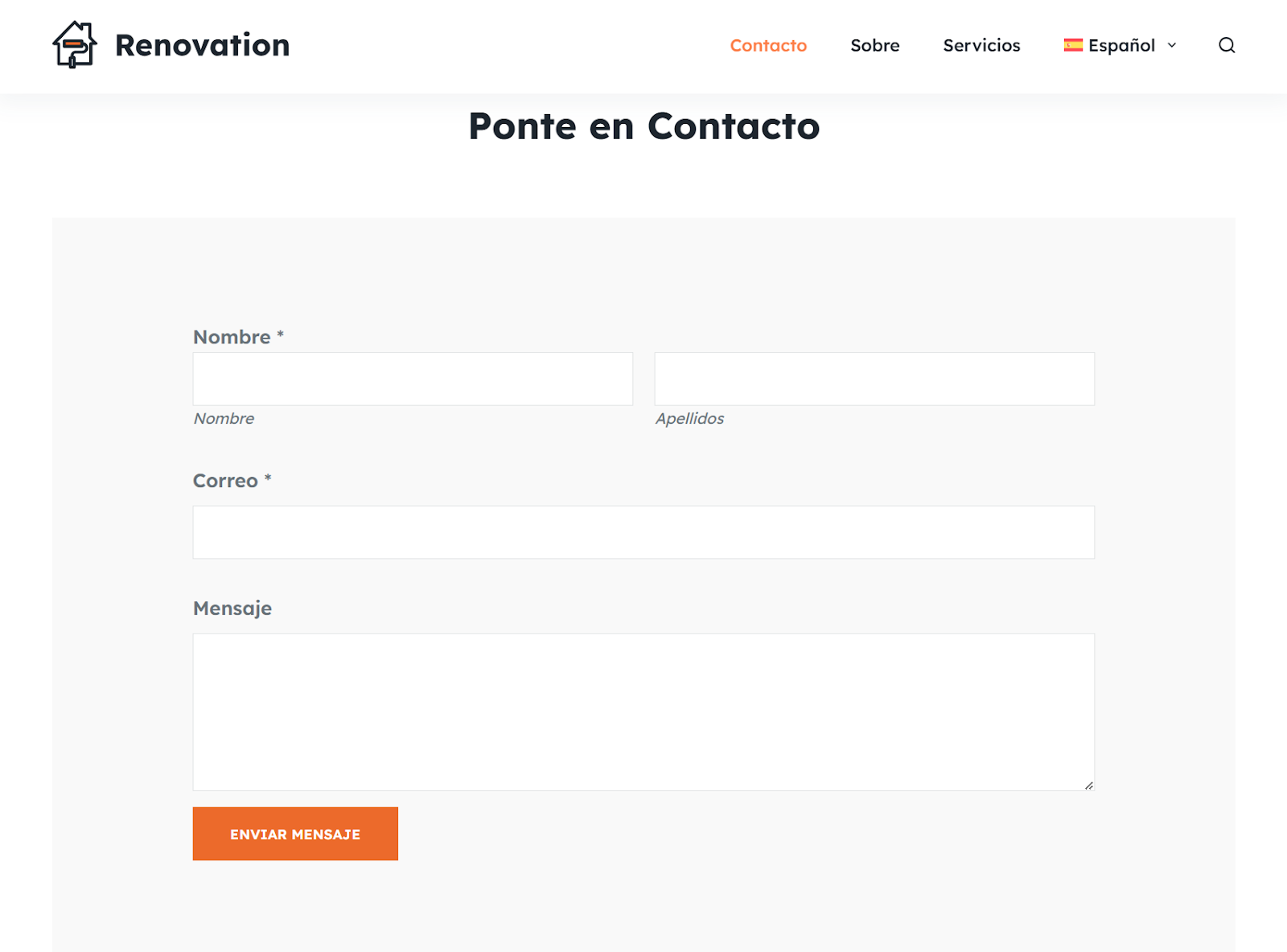
- If your plugin adds content using a shortcode (e.g., WPForms) you’ll need to create a new “component” for each language.
To explain the second method, let’s use WPForms as an example. Like many other WordPress plugins, WPForms lets you insert content using shortcodes:
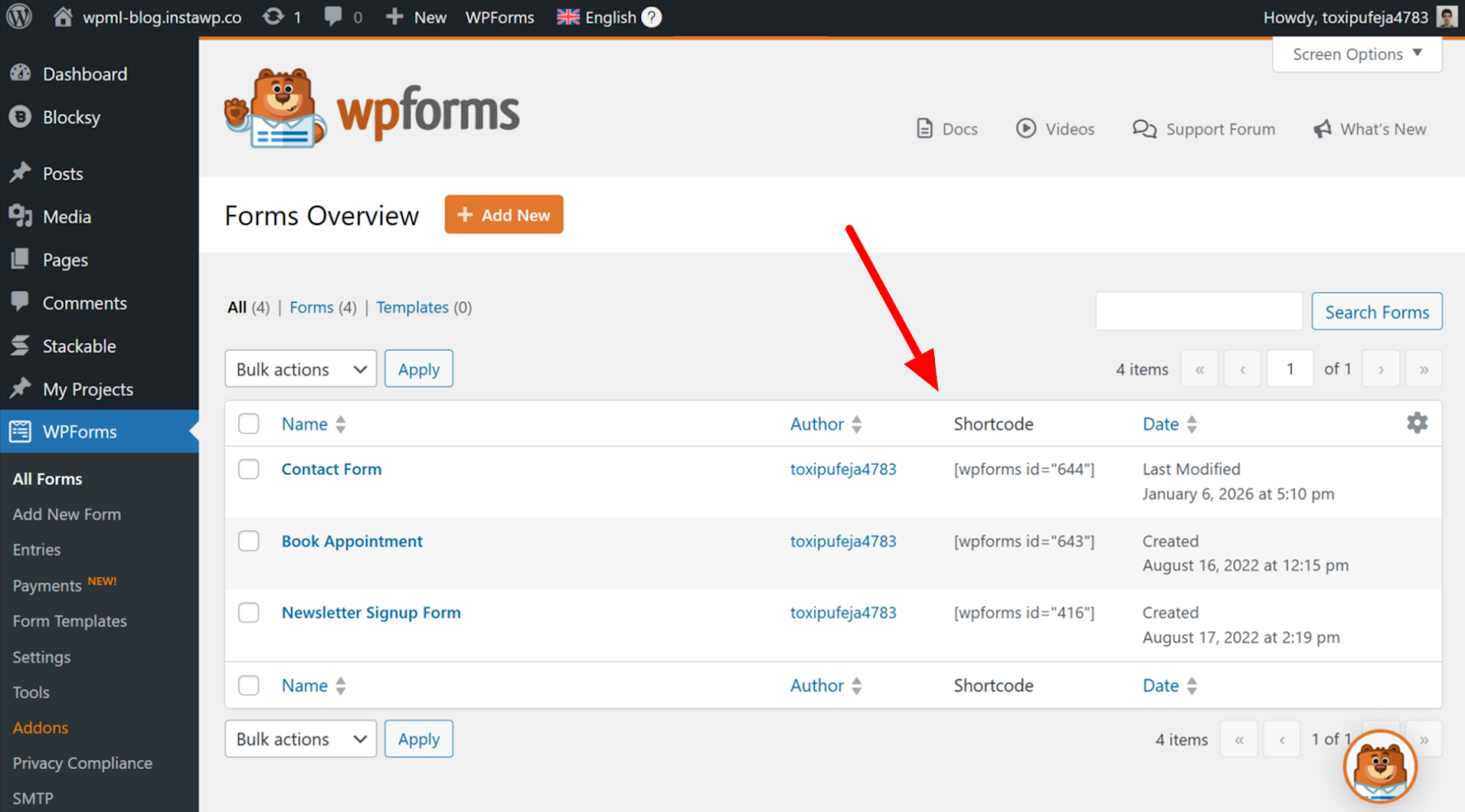
To translate this form, you need to create a completely new form and replace all its texts with translations.
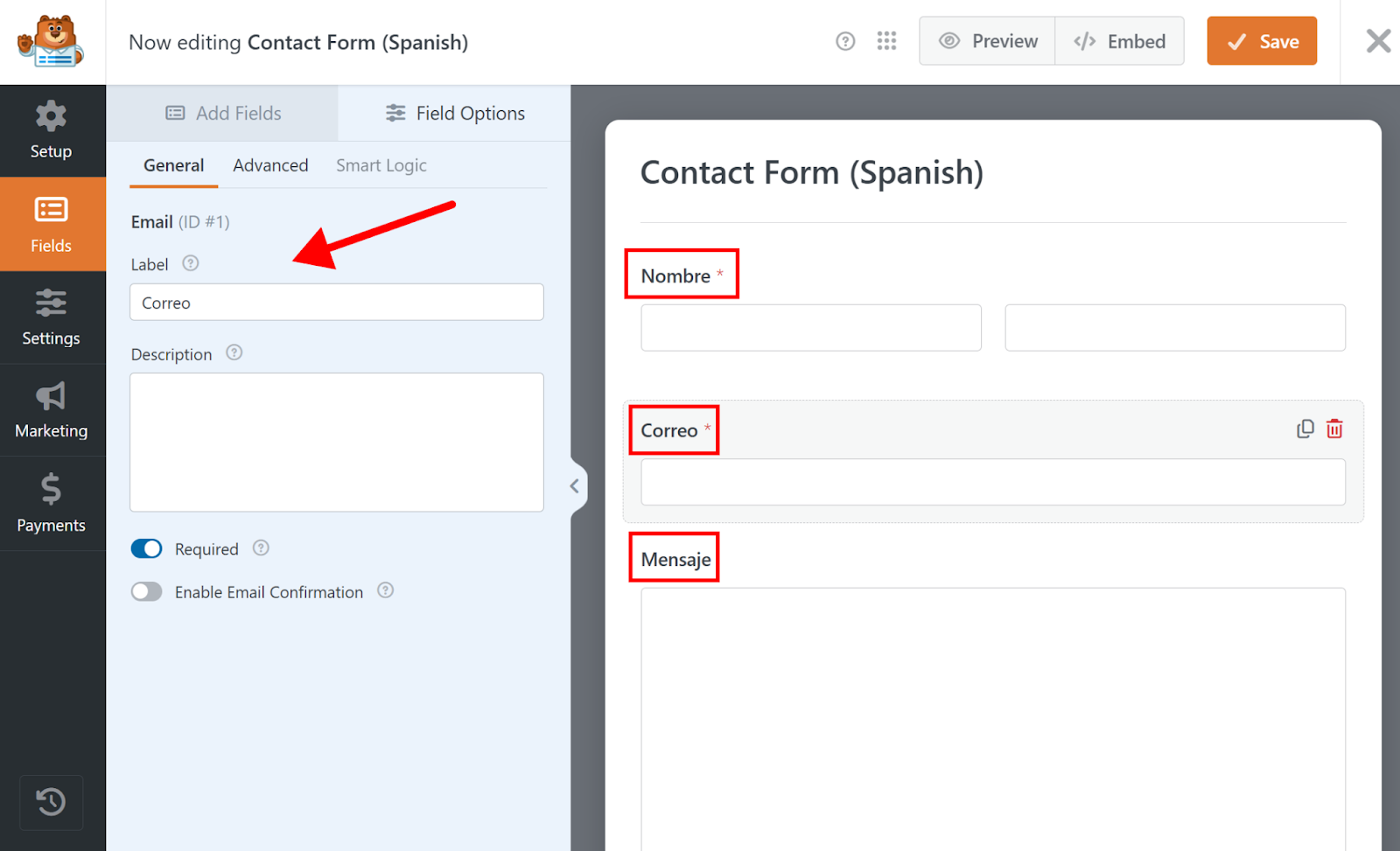
Once done, copy your new shortcode and paste it into your translated page.
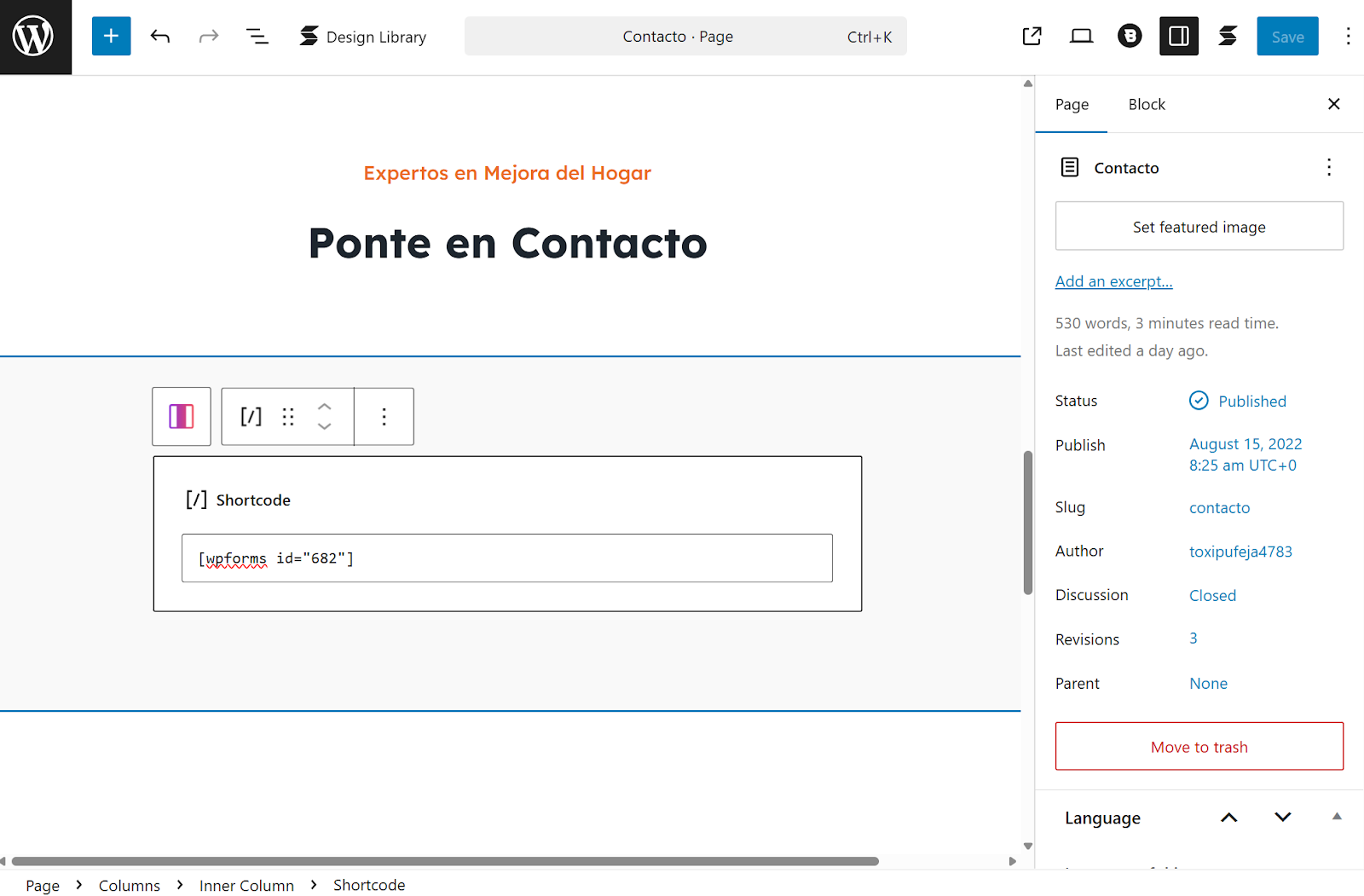
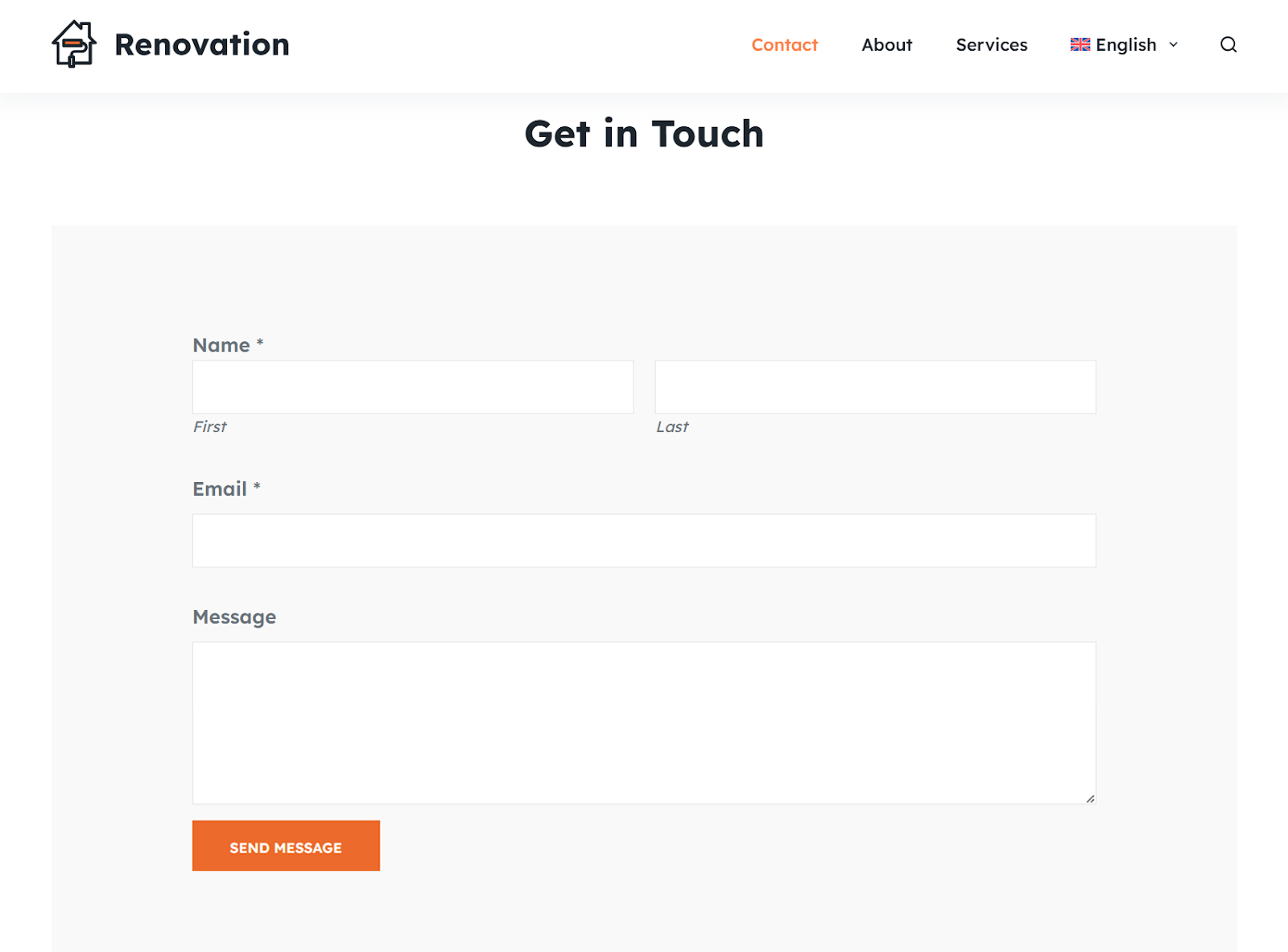
And that’s it! Each language version will now display a unique shortcode with different content.
Additional Resources
Looking for more translation tutorials? Check out these helpful guides with step-by-step instructions.
Add a Language Switcher
Insert a language switcher in your menus, widgets, or body content.
Add language switcher →
Translate Menus
Translate menus linking to pages, posts, or custom links.
Translate menus →
Localize Your Media
Personalize your media to local audiences by displaying different images and videos in each language.
Media translation →
Save Time with AI Translation
Skip the manual work and save hours of your time with WPML’s AI translation – backed with our translation quality guarantee.
Upgrade to Multilingual CMSTrusted by 10,000+ websites translating with AI
Frequently Asked Questions
How can I translate texts in my theme parts?
To translate texts in different theme parts, like your header, footer, or sidebar, you need the WPML String Translation add-on, available in the Multilingual CMS and Multilingual Agency plans.
Why are Plus icons missing on my custom post types?
Your custom post type screen is likely missing Plus icons because your post type is not set to translatable in WPML’s settings.
To enable it for translation, go to WPML → Settings, scroll down to the Post Types Translation section and set your post type to Translatable. The Plus icons will now appear on your custom post type screen.
How can I translate categories and tags?
You can translate categories and tags (also known as taxonomies) using WPML’s Taxonomy translation screen. Just go to WPML → Taxonomy translation, select a taxonomy from the dropdown, and click the Plus icon to enter translations.